
Designing a website is easy, especially when we've done all the hard work. Choosing the right fonts for it isn't so easy, especially if your branding identity doesn't have any defined. Your chosen website font is one which helps tie in all the other elements within your website, including your logo, colour scheme, navigation and layout. Then it also needs to be easily readable regardless of the type of device it is viewed.
To make things simpler, we've put together some things to consider when picking your website fonts, along with examples of popular web fonts.
Picking the Right Fonts for Your Website
Ultimately your chosen fonts must work with your brand, which has been created with your target audience in mind. Graphic designers will choose a font or more which best match your branding guidelines, and will usually let you know what they are called. These fonts are sometimes able to be used for headings and paragraphs, while some are only suitable for graphics and your logo. In saying this, you will still need to choose whether or not to use these fonts within your website or not, where these tips will help with that decision.
- Follow your branding guidelines - if you don't have any brand guidelines, you need some. They should detail the types of fonts suitable for your website and graphics, including specific font names.
- Pick no more than three fonts - the first is the primary font and should be used on your headers. This is the one which visitors will most associate with your brand and can be eye-catching. The second font is used on the majority of the other written content on your site. This is the font that needs to be the most legible. The third font is the accent font and is used for calls to action and usually is the same as the one within your logo.
- Be sure that your chosen fonts work well together. This is usually achieved by selecting serifs and sans serifs fonts, or two fonts which share the same family.
- Check how your fonts look on different devices and screen sizes. It needs to look as good on mobile as it does on desktop or a tablet.
- Know your font families: serif are quite serious or traditional fonts, sans serif are more modern, script are elegant, hand drawn or casual in appearance and decorative/display fonts are only for small areas or purposes. Each font type communicates a personality; choose ones which suit your brand image.
- Use web safe fonts that visitors to your site can see without having to download it to their device. Google Fonts are the gold standard web safe option.
Let's take a look at some of the most popular website fonts.
Popular Website Fonts
Everyone has an opinion on which font is their favourite, as as such, there are many different font popularity lists. We recommend using a Google Font, so we've put together a list of the most popular Google Fonts:
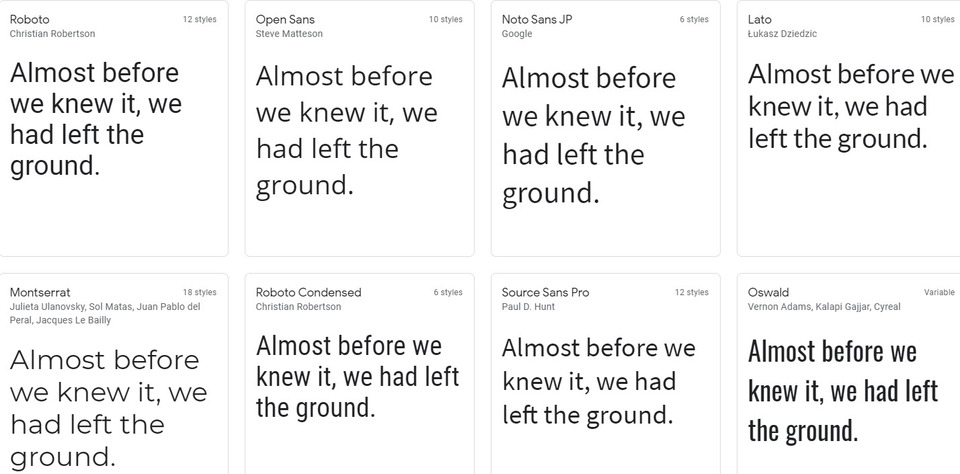
According to Google Fonts, their first eight most popular fonts are Roboto, Open Sans, Noto Sans JP, Lato, Montserrat, Roboto Condensed, Source Sans Pro and Oswald.
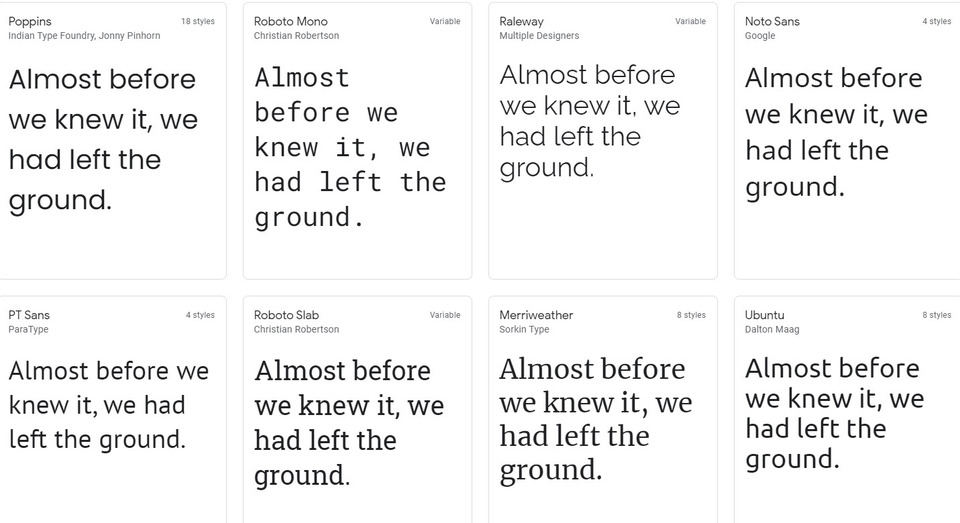
This is followed by the next eight most popular fonts: Poppins, Roboto Mono, Raleway, Noto Sans, PT Sans, Roboto Slab, Merriweather and Ubuntu.
How to Add a Google Font to Your Website
As well as a list of step by step instructions, we've also put together a video demonstrating how to add a Google Font to your website.
If you have chosen to add a Google Font to your website, this is easily achieved through the Design area of our CMS. Follow these steps:
1. In Google Fonts, choose the specific font variation you want and click Select this style.
2. Copy the standard link option you are shown, along with the Font Family name so they can be pasted into your website template.

3. Login to the CMS and select the Design tab, followed by the Colours and Fonts tab.
4. Click on the Custom Fonts (Import Google Fonts Code) edit button.
5. Paste the Google Font link inside the editor and click Save Changes.

6. Now paste the Font Family name into one or both of the font name options to tell the CMS which font to use for your website, and Publish:

Fonts are only one aspect of your web design. For further details and ideas on designing your website, read our articles Popular Website Colour Schemes و Using the Drag and Drop Editor to Design Your Website.
Posted: Thursday 18 March 2021
